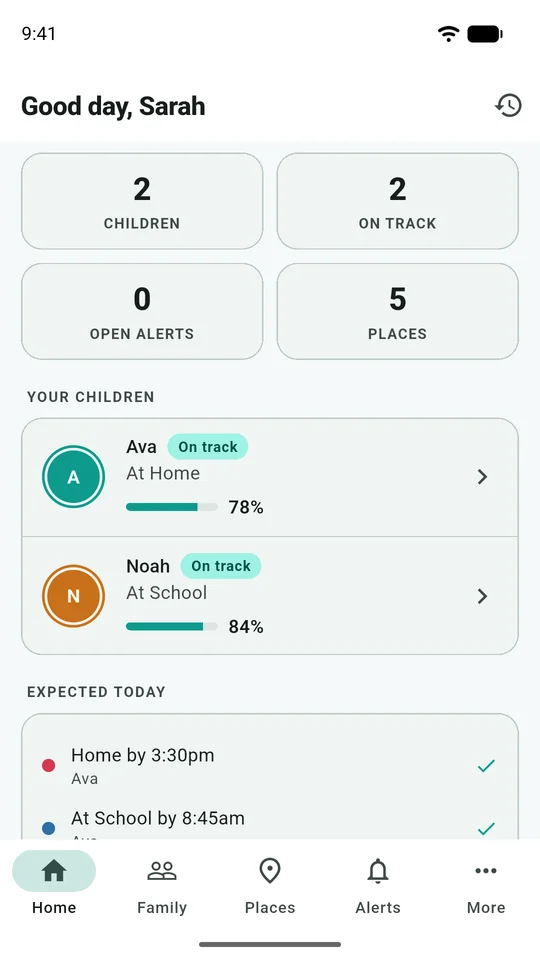
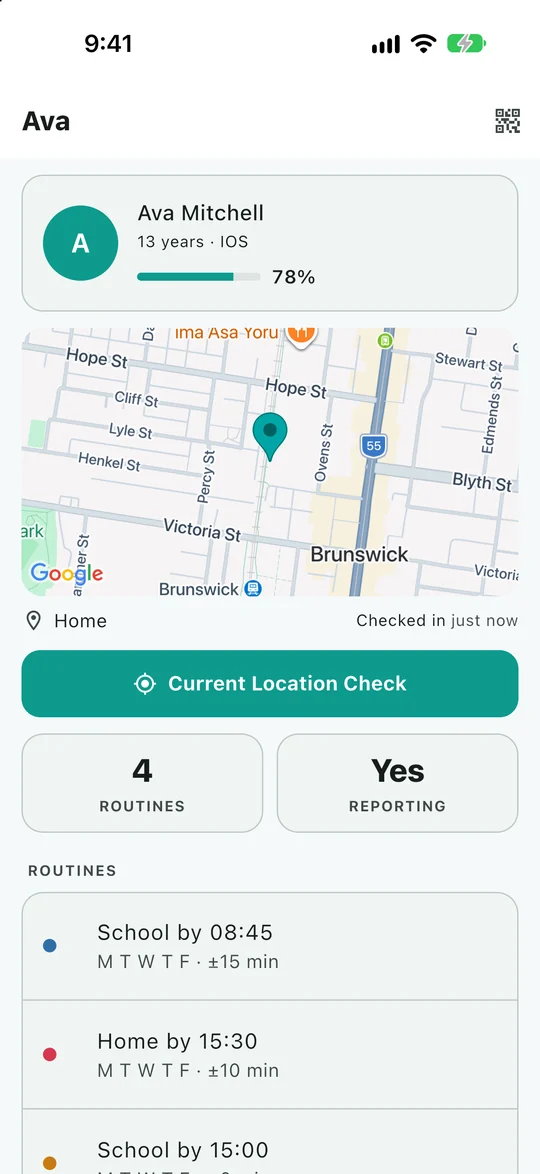
Before you begin
Have the grown-up's phone and the child's phone together, with a working internet connection on each. You will need access to the email address used for the family account. Use the Download page for installation information.
Explain what you are setting up before entering a code. A useful starting sentence is: “This helps us coordinate pickups and see the location your phone reports. Let's look together at what it shares.” The family discussion sheet helps make that conversation specific.
These steps describe the current Eyrie screens. Labels can vary between releases. Features and limits also depend on your plan.
1. Create the family account on the website
Choose Create Account in this website's navigation, then complete registration and email verification. Keep your password and verification codes private. An invited guardian should use their invitation instead of creating a second family just to access yours.
If you change to a paid plan, follow the checkout confirmation. You may be signed out after a successful plan change; sign in again to load the updated account. Check that the family and plan shown are the ones you intended before continuing.
2. Link the grown-up's phone
Install Eyrie and choose Mine — I'm the grown-up on “Whose phone is this?” On the account website, open your account's Security section and choose Link a phone. Enter the displayed link code in the app and choose Link this phone.
This code connects your own phone to your account. It is different from the code that pairs a child's phone. A link code expires; request a fresh one if the app refuses an old code. The app also offers Sign in with email instead. Returning invited guardians have a separate Guardian sign-in route using their email and an emailed code.
3. Add the child and generate their pairing code
Open Family, add the child's profile and open their card. Choose Pair a phone. Keep the code visible while you work on the child's device. If the countdown expires, use New code and enter the new value rather than repeatedly trying the expired one.
Pairing codes grant access to your family. Share them only with the person setting up the intended device. Do not post a code in a public support message or screenshot.
4. Connect the child's phone openly
On the child's installation, choose My child's and follow Enter code. Type the child's pairing code and choose Connect. Read the transparency information together and finish the phone's permission setup.
Location sharing in the background requires different settings from simply seeing a map while an app is open. Use the guide for Android or iPhone. Review notification permission on the receiving grown-up's phone as well.
5. Check an ordinary journey before relying on alerts
Look for the child's phone to show Sharing with your family. On the grown-up's device, open the child's card and check the reported time as well as the map. Send a simple message and ask the child to use I'm here. Make these checks while both phones are with you, then check again after a short ordinary outing with the child's screen locked.
A new heartbeat does not prove that every location fix is new or precise. Read how timestamps and locations differ if the map looks surprising. Begin with one place and routine, and keep your normal pickup and contact arrangements in place.
If setup gets stuck
Check which code you are using, whether it has expired and which role was chosen on the phone. If one account can sign in but another cannot, that alone does not establish an internet fault. Record the exact error, app version and phone model, then contact support. Never send your password, verification code or a child's precise location in an initial support email.