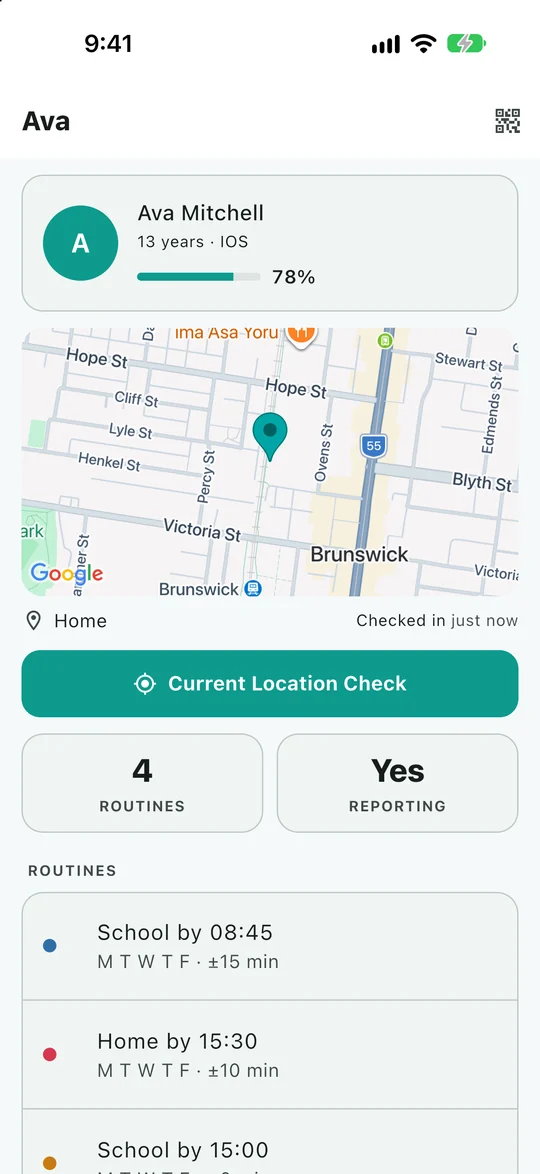
What this setup is trying to achieve
The child's iPhone needs permission to obtain location while Eyrie is off-screen and a connection to send reports. The grown-up's iPhone needs permission to display notifications. These are different jobs; changing the receiver's notification settings will not repair missing location access on the child's device.
Start by opening Eyrie on the child's phone. Confirm that it is connected to the intended family and look for Sharing with your family. If pairing or transparency setup is unfinished, complete that before changing other settings.
1. Review Always and Precise Location
Open Settings → Privacy & Security → Location Services, make sure Location Services is enabled, and select Eyrie. Choose Always for background sharing when that option is offered. Leave Precise Location on if your family wants detailed positions and useful place boundaries.
“While Using the App” and “Always” provide different levels of access. If Always has not appeared, follow Eyrie's permission prompts, then revisit the app's Location Services settings. The choices shown can depend on the application's requests and your iOS version.
Apple describes these options in Turn Location Services on or off. A permission allows access; it does not guarantee an accurate fix or an upload every few seconds.
2. Review Background App Refresh
Go to Settings → General → Background App Refresh. Check the overall setting and Eyrie's switch, if listed. For use away from home, review whether the overall option permits mobile data as well as Wi-Fi.
Background App Refresh supports some background work. It is not a switch that overrides all iOS scheduling or location restrictions. Apple also warns that an app quit from the app switcher may not run or check for new content until reopened. If you have swiped Eyrie away, open it again before checking whether reporting resumes. See Apple's background refresh explanation.
3. Check power and data conditions
Look in Settings → Battery for Low Power Mode. Apple says it disables Background App Refresh, among other changes. Temporarily turn it off while investigating a reporting problem and compare behaviour, while keeping a charging plan for the phone. Apple's Low Power Mode guidance explains the trade-off.
In Settings, search for Mobile Data or Cellular, then check whether Eyrie may use it. A phone that works on home Wi-Fi may behave differently on a school network or when mobile data is unavailable. Airplane Mode, a flat battery and a phone that is switched off are additional reasons it may be unable to send a report.
4. Set notification expectations on the receiving device
Review Settings → Notifications → Eyrie on the grown-up's phone. Decide whether Eyrie may show alerts on the Lock Screen, in Notification Centre and as banners, and whether sounds are enabled. Review Focus settings and any Time Sensitive option that iOS offers for Eyrie.
Do not assume every SOS will override Silent mode or Focus. Delivery and presentation depend on device settings, connectivity and the notification capabilities available to that release. A visible alert also does not prove that a person noticed it. Apple's notification-settings guide explains the controls available to the receiver.
5. Verify with an ordinary check-in
With both phones present, send a message and ask the child to use I'm here. Read the time on the grown-up's child's card. Check again after a normal short outing with the child's screen locked. Do not activate SOS simply to check ordinary connectivity.
If the map looks wrong, separate an old report from an imprecise one using the location guide. If updates repeatedly stop, note the iPhone model, iOS and Eyrie versions, last report time and any power-saving changes. Support can use that pattern to investigate. Correct settings improve the conditions for sharing; iOS, GPS and mobile networks still impose limits.